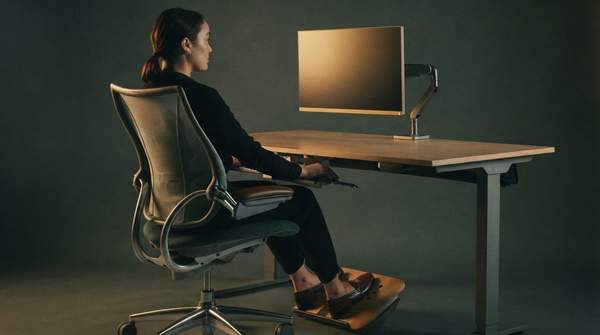
You can prevent most desk-related strain by adjusting four things in order: your chair, your monitor, your keyboard and mouse, and your break habits. UCLA's ergonomics program, which publishes a four-step workstation guide, gives precise targets—a backrest reclined to 100°–110°, the top third of your monitor at seated eye level, and feet flat with knees level with or slightly below your hips. This article consolidates those measurements into a single checklist you can work through today, then refine over the following weeks.
The Foundation: Why Ergonomics Matters for Your Home Office
Your desk setup acts on your body for six to ten hours every day, as Contour Design, a maker of ergonomic peripherals that publishes its own setup guides, points out. Small positioning errors compound over that time: a monitor that sits too low or too far forces your neck out of neutral, which can produce neck strain and tension headaches. Leaning forward, squinting, or tilting your head to find a comfortable viewing angle adds neck pain, headaches, and faster visual fatigue, according to Specialty Vision, a vision-care resource writing about low-vision office ergonomics.
The good news is that the fixes are mechanical, not medical. Clearing under-desk clutter, adding lumbar support, or repositioning a mouse can deliver noticeable relief within days, Contour Design reports. The framework below assumes a standard seated workstation and aims at preventing strain—not treating diagnosed conditions or existing injuries, which warrant a clinician's attention.
Your Ergonomic Home Office Setup Checklist
Work through this table top to bottom: chair first, then monitor, then keyboard and mouse. Each row pairs a component with the ergonomic principle behind it and the specific measurement to aim for. After each adjustment, check your body against the criterion before moving on.
| Component | Ergonomic Principle | Specific Guideline |
|---|---|---|
| Chair — height | Neutral leg and hip posture | Push hips as far back in the chair as they go; set seat height so feet rest flat on the floor (or a footrest) and knees sit level with or slightly below hips, thighs parallel to the floor. |
| Chair — backrest | Support the spine's natural curve | Recline the backrest to 100°–110°; support upper and lower back, adding a small pillow or inflatable cushion if needed. |
| Monitor — height | Neutral, relaxed neck | Center the screen directly in front of you above the keyboard, with the top third of the screen at seated eye level. Bifocal wearers should lower the monitor to a comfortable reading level. |
| Monitor — distance and glare | Comfortable focus, minimal glare | Sit at least an arm's length away, then adjust for your vision; Contour Design suggests roughly 20–26 inches. Place the screen at right angles to windows and adjust blinds as needed. |
| Keyboard and mouse | No reaching; neutral wrists | Keep both close to your body so forearms stay parallel to the floor and elbows bend at about 90 degrees with wrists straight. A compact keyboard lets the mouse sit nearer your centerline. |
| Desk and legs | Clearance for posture changes | Clear clutter under the desk so legs fit comfortably and posture can shift during the day. |
Two details deserve special care. On distance, the Canadian Centre for Occupational Health and Safety advises starting at an arm's length and adjusting to the individual; if that distance makes text hard to read, increase the font size rather than hunching closer to the screen. On tilt, Specialty Vision suggests a slight backward lean of 10 to 20 degrees to cut glare from overhead lights and keep the screen perpendicular to your line of sight—avoiding angles that force you to look sharply up or down.